What Actually Causes a Wi-Fi Dead Zone
Wi-Fi signals travel as radio waves, and like all radio waves, they weaken as they travel and lose even more energy when they pass through solid objects. A dead zone forms wherever that signal drops below the threshold a device needs to function.
The most common culprits are:
- Building materials: Concrete, brick, and plaster absorb signal far more aggressively than standard drywall. Metal - found in appliances, HVAC ducts, and reinforced walls - can block or scatter signals almost entirely.
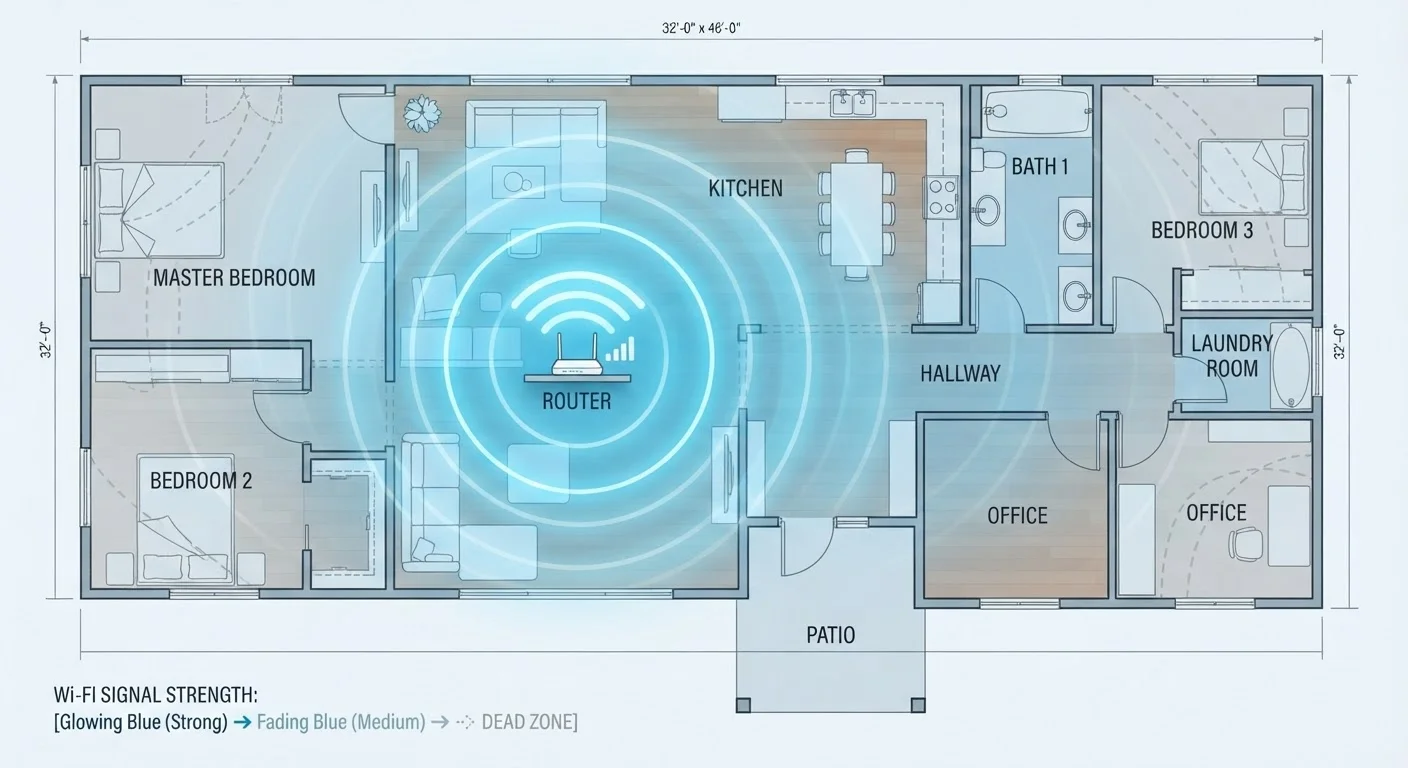
- Distance from the router: Every few feet of open air reduces signal strength. Walls compound this, so a room that's 30 feet away with two brick walls in between may receive almost no usable signal.
- Router placement: A router tucked into a closet, positioned on the floor, or shoved into a corner of the house is already starting at a disadvantage. Its signal has to travel farther and through more obstacles to reach the rest of the home.
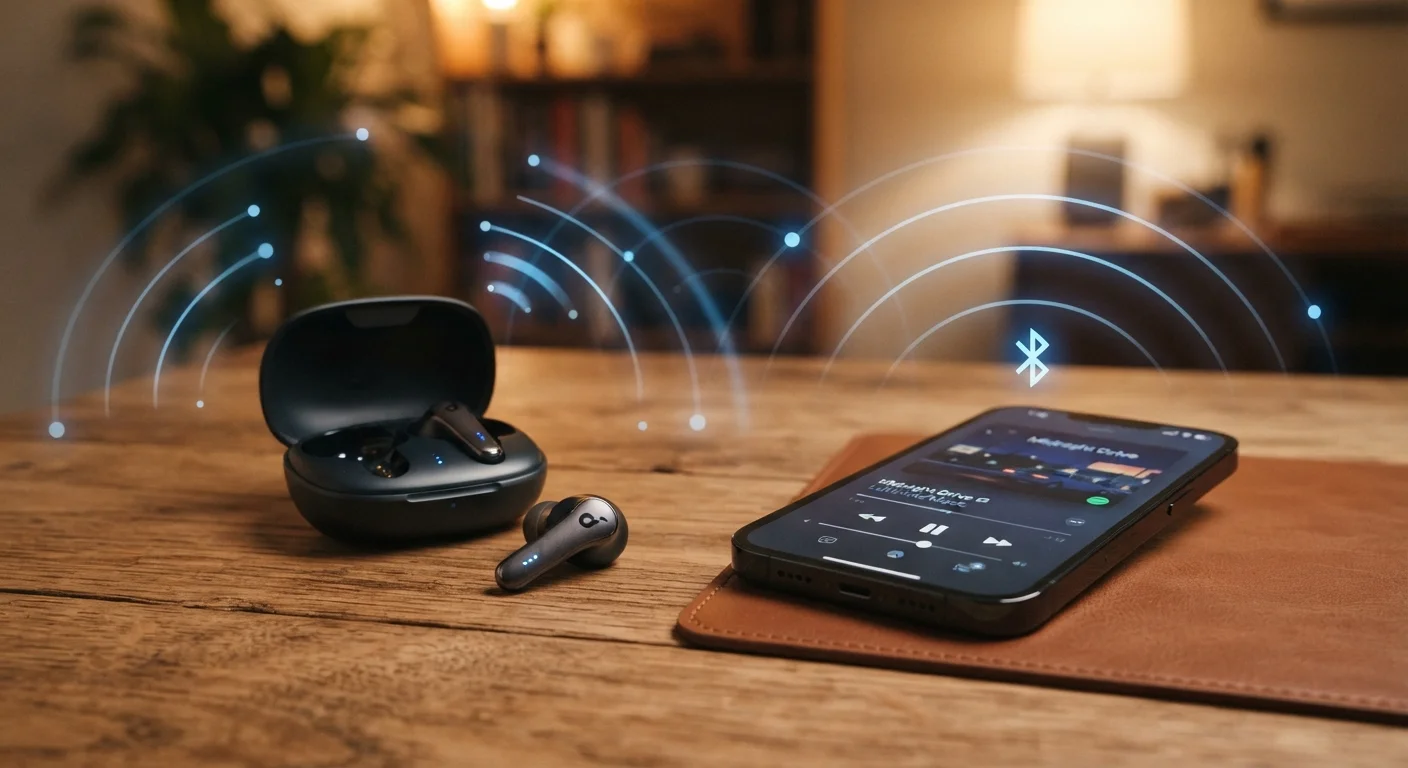
- Interference: Neighboring Wi-Fi networks, microwave ovens, cordless phones, and even Bluetooth devices can crowd the radio frequencies your router uses, degrading signal quality.
Neighboring Networks Can Crowd Your Signal
In apartments and densely populated neighborhoods, dozens of nearby Wi-Fi networks can compete for the same radio channels. Most modern routers can automatically select the least congested channel, but manually setting a less-used channel through your router's admin interface can improve performance in crowded areas. This is especially relevant on the 2.4 GHz band, which has fewer non-overlapping channels than 5 GHz.
The Role of Frequency Bands in Coverage
Most modern routers broadcast on two frequencies: 2.4 GHz and 5 GHz. Understanding the difference is key to troubleshooting dead zones. The 2.4 GHz and 5 GHz bands serve different purposes, and choosing the wrong one for a given situation can create or worsen a dead zone.
- 2.4 GHz travels farther and penetrates walls more effectively, but it's slower and more susceptible to interference from neighboring networks and household devices.
- 5 GHz delivers faster speeds but has a shorter effective range and is more easily blocked by walls and floors.
If a device at the edge of your coverage area is automatically connecting to the 5 GHz band, switching it to 2.4 GHz through your router's settings may restore a usable connection - though speeds will be lower. This is a quick diagnostic step worth trying before investing in new hardware.
~50-80%
Signal loss per concrete or brick wall
Radio frequency engineering research consistently shows dense masonry materials cause significant attenuation of Wi-Fi signals in the 2.4 and 5 GHz bands.
1 in 3
U.S. households reporting Wi-Fi dead zones
Consumer broadband surveys have repeatedly found that a substantial portion of home internet users experience coverage gaps somewhere in their residence.
Practical Fixes That Actually Work
Once you understand why a dead zone exists, the fix becomes clearer. Here are the approaches that make a measurable difference:
Reposition Your Router
This is free and often the most impactful step. Move the router to a central location in your home, elevated on a shelf or desk, away from metal objects and thick walls. A router sitting in a far corner of the house will always create dead zones on the opposite side.
Use a Mesh Network System
Mesh systems replace or supplement your router with multiple nodes placed around the home. Each node communicates with the others, creating a seamless network that adapts to your layout. They're especially effective in larger homes, multi-story spaces, or anywhere with heavy signal-blocking construction. See our comparison of mesh networks vs. Wi-Fi extenders for a detailed breakdown of each approach.
Add a Wired Access Point
If you can run an Ethernet cable to a problem area, a wired access point creates a strong, reliable signal bubble exactly where you need it. This is one of the most reliable solutions available and sidesteps interference issues entirely.
Try a Wi-Fi Extender Strategically
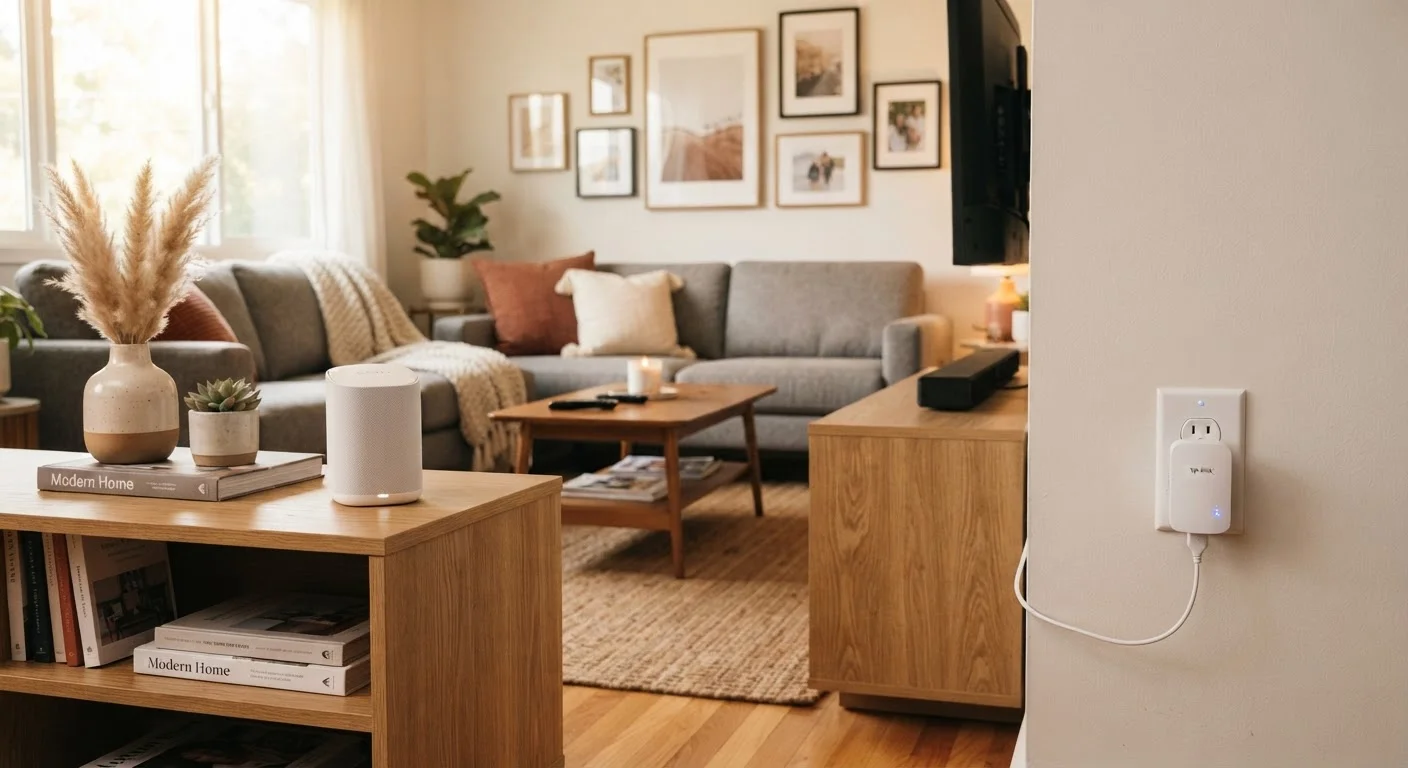
Extenders work best when placed in an area that already receives a decent signal - roughly halfway between the router and the dead zone. Placing one inside the dead zone itself often produces disappointing results because it's rebroadcasting a weak signal. For a deeper look at diagnosing what's slowing your network down, see our systematic guide to slow home internet.
Start With Placement Before Buying Hardware
Before purchasing any new equipment, try relocating your router to the most central spot in your home and elevating it off the floor. This single change resolves a surprising number of dead zones at no cost. Only if coverage gaps persist after repositioning should you consider adding extenders or a mesh system.
When to Accept Limits - and When to Go Further
Not every dead zone can be eliminated cheaply. Homes built with poured concrete, thick masonry, or metal mesh in the walls present genuine engineering challenges. In these cases, a combination of approaches - a mesh system plus a wired access point in the most critical area - is likely the most effective path.
It's also worth remembering that your home network's overall health affects every room. Understanding everything connected to your home network can help you identify whether device congestion is contributing to what feels like a dead zone but is actually an overloaded network. And once your coverage is solid, building good home network security habits ensures the signal you've worked to extend stays protected.
The bottom line: most dead zones are solvable with a combination of smarter router placement and the right additional hardware. Starting with the free fixes first - repositioning, band-switching - will tell you how much of the problem is structural versus situational before you spend anything.