Bluetooth Drops More Than You'd Expect - Here's Why
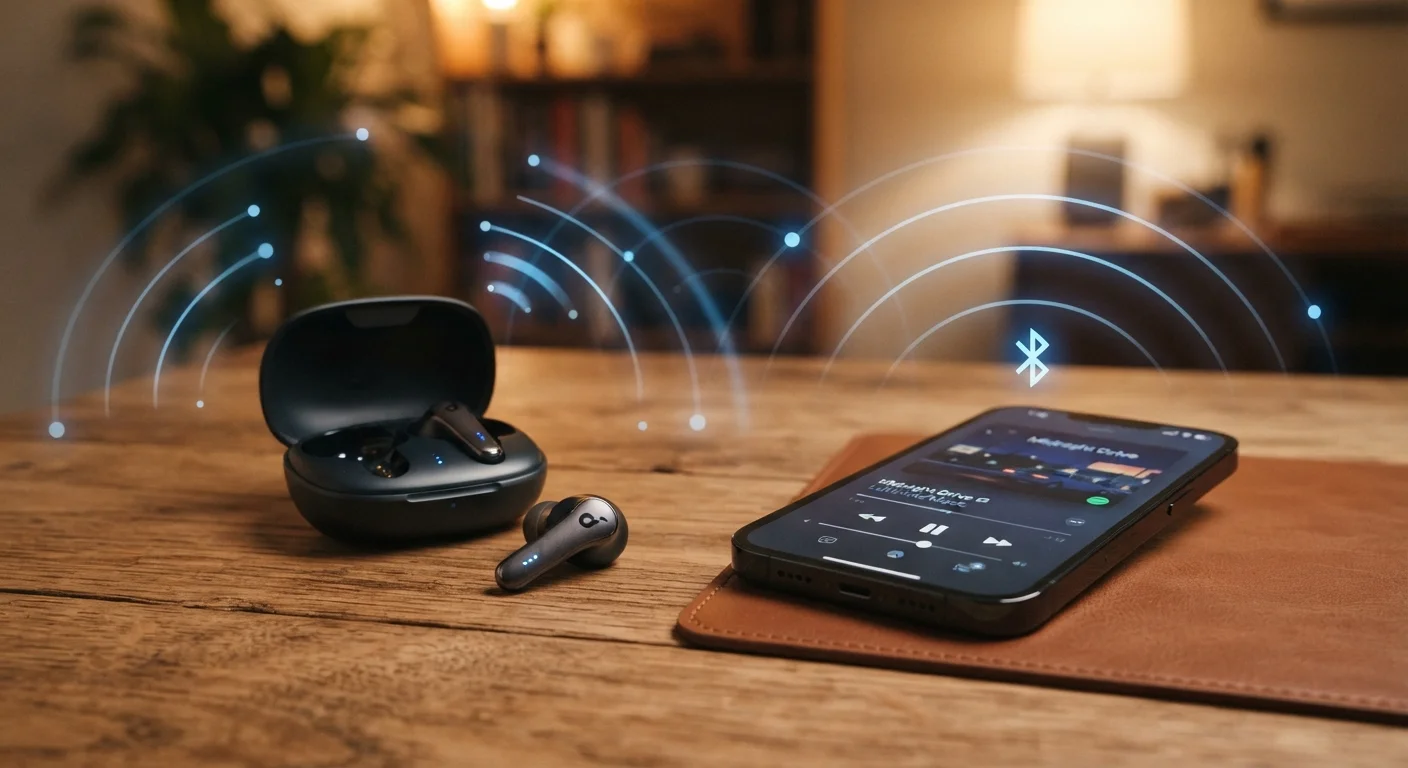
Bluetooth is one of those technologies we only notice when it fails. A call cuts out mid-sentence, music skips for no obvious reason, or a wireless headset disconnects and reconnects every few minutes. The frustration is real - but the causes are rarely mysterious.
Bluetooth operates on the 2.4 GHz radio frequency band, the same band used by Wi-Fi routers, microwave ovens, baby monitors, and cordless phones. That crowded spectrum is the starting point for understanding why your connection sometimes misbehaves. Unlike Wi-Fi, which has moved significantly to the less-congested 5 GHz and 6 GHz bands, most Bluetooth devices remain on 2.4 GHz - meaning interference is a built-in challenge rather than an occasional accident.
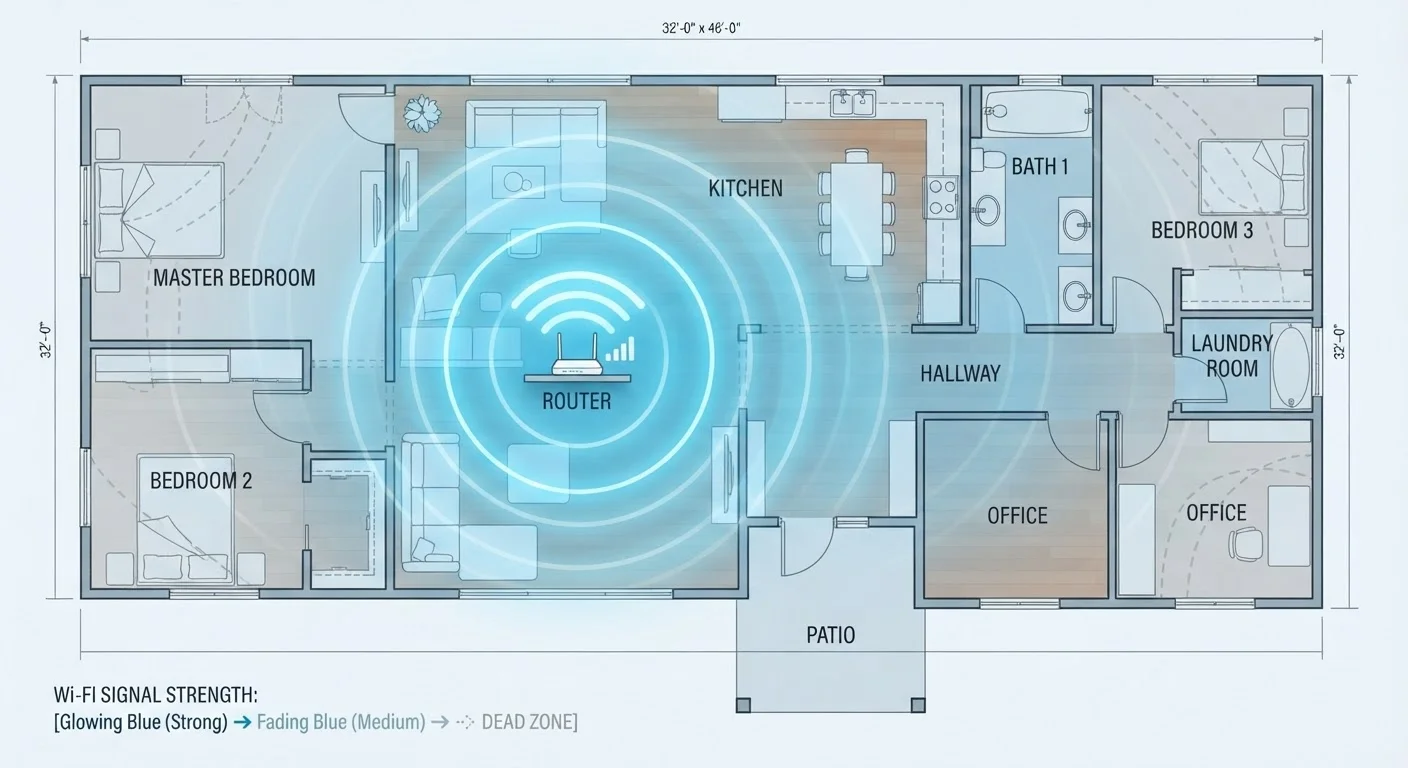
The good news: most dropout problems fall into a handful of recognizable patterns, and the fixes are usually straightforward. The mistakes below are the ones users make most often - sometimes without knowing they're making them at all. Just as Wi-Fi dead zones follow predictable patterns, so do Bluetooth failures.
Operating Bluetooth devices at or near the edge of their range.
Why it happens: Manufacturers advertise range figures measured in ideal, open-air conditions. Real-world environments - with walls, furniture, and bodies in the way - can cut effective range by half or more.
Placing Bluetooth devices near major sources of 2.4 GHz interference.
Why it happens: Microwaves, cordless phones, baby monitors, and busy Wi-Fi routers all share the 2.4 GHz band. Users rarely connect their streaming problems to the microwave running in the next room.
Ignoring firmware and driver updates on Bluetooth devices.
Why it happens: Headphones, speakers, and adapters receive software updates that fix connectivity bugs, but most people never check for them after the initial setup.
Pairing too many devices to a single Bluetooth source without managing the list.
Why it happens: Phones and laptops remember every device they've ever paired with. A long pairing history can cause devices to attempt multiple simultaneous connections, creating instability.
Assuming all Bluetooth connections deliver the same audio or data quality.
Why it happens: Bluetooth supports multiple audio codecs - SBC, AAC, aptX, LDAC - but the connection defaults to the lowest common denominator both devices support. Users don't know this negotiation is happening.
What You Can Do Right Now
Most of the issues described above share a common thread: they're invisible until you know what to look for. Once you understand that walls, competing radios, and outdated software all compete for your Bluetooth signal's attention, the dropouts stop feeling random.
2.4 GHz
Frequency band shared by most Bluetooth devices
The 2.4 GHz band is also used by Wi-Fi, microwaves, and cordless phones, making interference a persistent challenge for Bluetooth reliability.
~30 ft
Typical real-world indoor Bluetooth range
While Bluetooth Class 2 devices are rated for up to 33 feet, walls and obstacles routinely reduce effective range in home and office environments.
Start by checking the basics - distance and obstacles first, then interference sources nearby. If your router is dual-band or tri-band, make sure 2.4 GHz and 5 GHz networks have separate names so your phone doesn't accidentally compete with your Bluetooth device on the same band. Then check for firmware updates on both your audio device and your phone or computer.
If problems persist after those steps, consider whether your environment is unusually congested. Dense apartment buildings, open-plan offices, and venues with many active Wi-Fi networks can push 2.4 GHz interference to levels where even well-paired devices struggle. In those cases, switching to Bluetooth devices that support newer versions of the standard - which handle interference more efficiently - can make a genuine difference.
This article is for general informational purposes only. Product capabilities and wireless performance vary by device and environment.