Two Bands, One Router - Here's the Difference
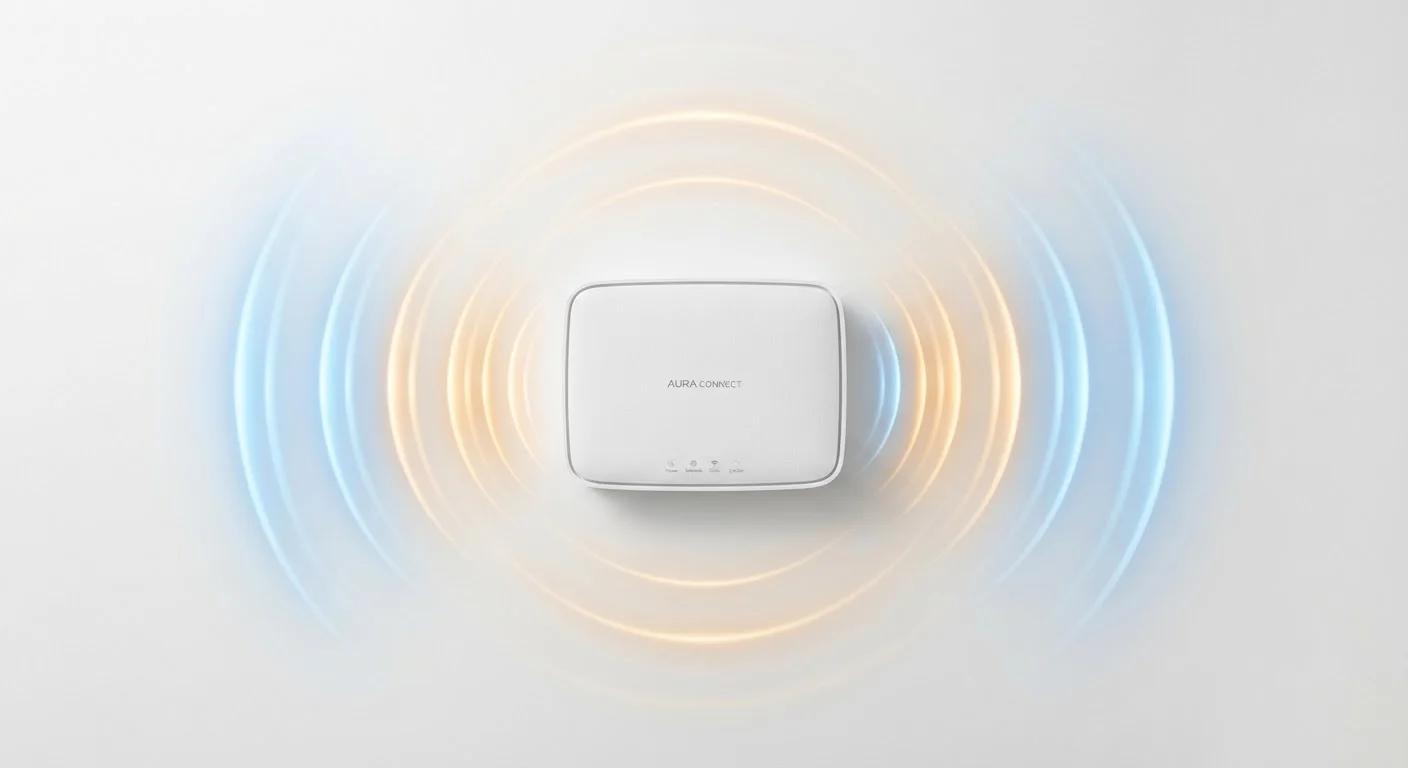
If you've ever looked at your Wi-Fi settings and seen two network names - one ending in "2.4G" and another in "5G" - you've already encountered this. Most routers made in the past decade broadcast on both frequencies at the same time. They're not two separate internet connections; they're two different radio lanes using the same internet service coming into your home.
Think of it like this: 2.4 GHz is the long country highway - it covers a lot of ground but isn't designed for high speed. The 5 GHz band is the urban expressway - fast and efficient, but only useful if you're nearby. Understanding which lane to take makes a real difference in how well your devices perform.
What About Wi-Fi 6 and 6E?
Wi-Fi 6 (802.11ax) improves efficiency on both the 2.4 GHz and 5 GHz bands - it doesn't change which band is best for which task, but it handles congestion better and serves more devices simultaneously. Wi-Fi 6E adds a 6 GHz band, which offers very fast speeds at close range with almost no interference. These newer standards require both a compatible router and compatible devices to deliver their full benefits.
What 2.4 GHz Is Actually Good For
The 2.4 GHz band has two genuine advantages: distance and wall penetration. Its lower-frequency radio waves carry farther and lose less energy passing through solid materials. If a device is in a bedroom down the hall, a garage, or a basement, 2.4 GHz is usually the more reliable choice.
The downside is congestion. The 2.4 GHz band only has three non-overlapping channels, and it's shared not just among your own devices, but with your neighbors' routers, Bluetooth devices, microwave ovens, and baby monitors. In dense apartment buildings, this spectrum gets crowded fast - which is why 2.4 GHz can feel sluggish even when you're close to your router.
Best uses for 2.4 GHz:
- Smart home devices (thermostats, light bulbs, plugs)
- Devices far from the router
- Lower-bandwidth tasks like browsing and email
- Older devices that only support 2.4 GHz
Where 5 GHz Pulls Ahead
The 5 GHz band offers dramatically higher throughput - meaning more data can move between your router and device in the same amount of time. It also has more available channels, so it's far less congested than 2.4 GHz, especially in areas with many nearby networks.
The catch is physics. Higher-frequency radio waves carry more data but shed energy faster. Concrete walls, floors, and even dense furniture absorb 5 GHz signals more aggressively. In a straightforward line of sight - your laptop on a desk in the same room as your router - the 5 GHz band is almost always the better choice.
Quick Rule of Thumb for Band Selection
If a device is within the same room or one room away from your router and needs fast, reliable throughput, choose 5 GHz. If it's farther away, passes through multiple walls, or only needs a low-speed connection (like a smart plug), stick with 2.4 GHz. When in doubt, try 5 GHz first and switch if the connection is unstable.
Best uses for 5 GHz:
- Video streaming in HD or 4K
- Online gaming and video calls
- Laptops and phones used in the same room as the router
- Anything that demands fast, consistent throughput
For a broader look at how all your connected devices interact, see how home networks work.
Putting It Into Practice
You don't need to be a networking expert to put this knowledge to work. A few straightforward habits can improve the connection quality of nearly every device in your home.
3
Non-overlapping channels on 2.4 GHz
The 2.4 GHz band has only 3 non-overlapping channels (1, 6, and 11) in the U.S., making congestion common in densely populated areas.
25+
Non-overlapping channels on 5 GHz
The 5 GHz band supports over 25 non-overlapping channels in the U.S., significantly reducing interference from neighboring networks.
~150 ft
Typical 5 GHz effective indoor range
Indoor 5 GHz range is commonly cited at roughly 50 meters in open space; walls and obstacles reduce this substantially.
If your router uses a single combined network name (sometimes called a unified SSID), your devices choose which band to join automatically. This is convenient, but the automatic selection isn't always ideal. Many routers let you split the two bands into separate network names in the admin settings - a small change that gives you direct control over which devices connect where.
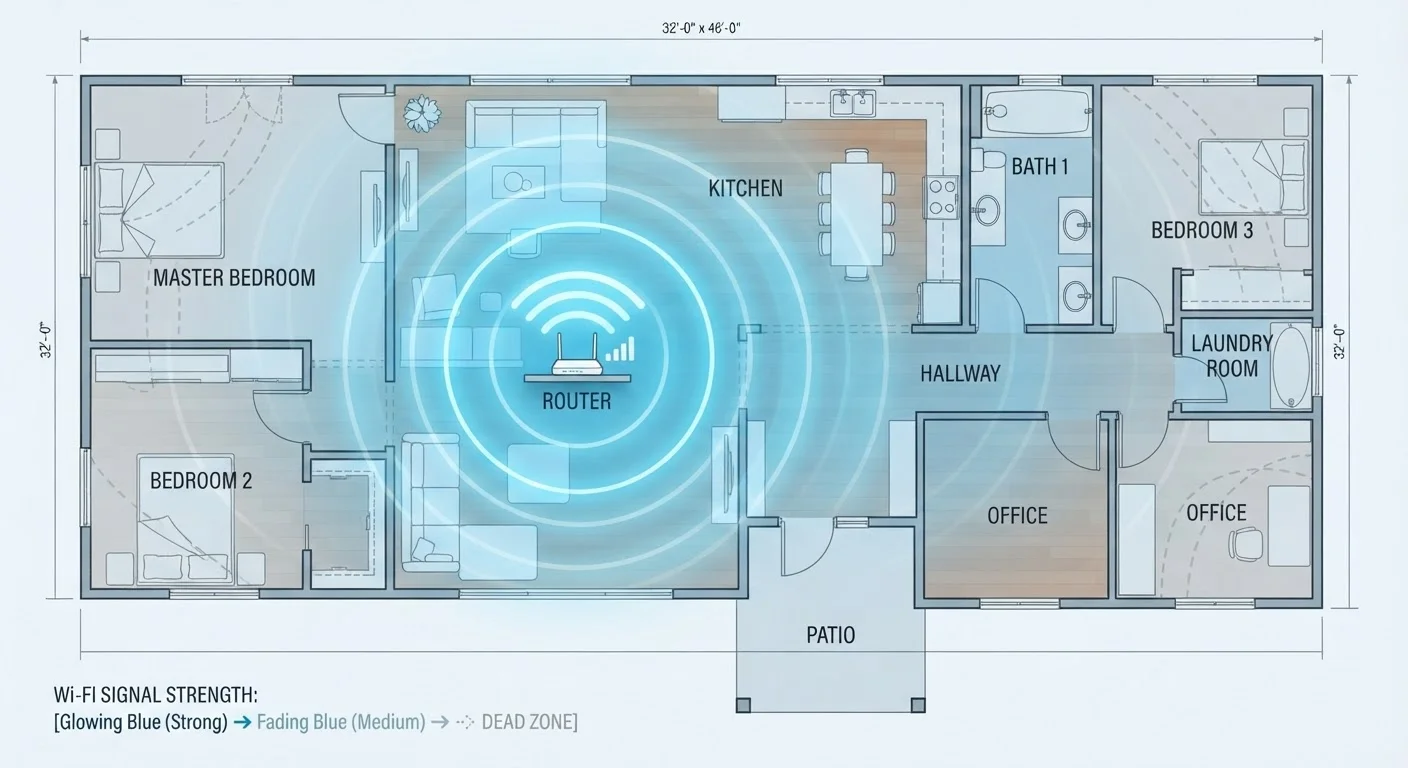
If you're dealing with rooms where the signal drops out entirely, the band you're on is only part of the story. Physical placement of the router, interference sources, and your home's layout all play a role. Our guide on Wi-Fi dead zones covers the full picture. And if you're considering hardware upgrades, it's worth understanding how mesh networks compare to Wi-Fi extenders before deciding.