Why Home Network Security Deserves Attention
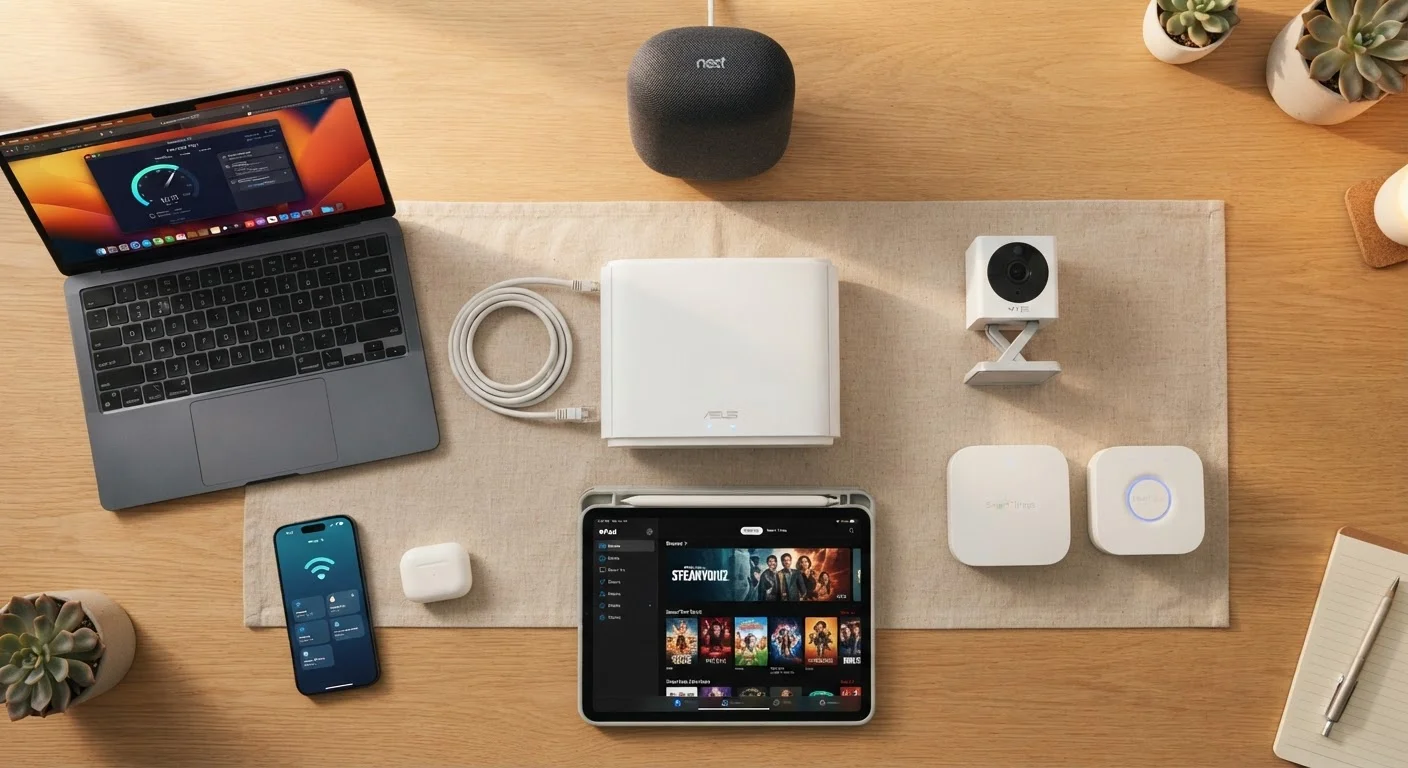
Your home Wi-Fi isn't just how you stream movies or browse social media - it's the backbone connecting your laptop, phone, smart TV, security cameras, and possibly your thermostat or doorbell. When that network is poorly secured, every device on it becomes a potential entry point for someone who shouldn't be there.
The good news is that meaningful protection doesn't require a technical background. A handful of consistent habits, applied once and maintained occasionally, can dramatically reduce the risks most home networks face. For a broader picture of everything sharing your connection, see what lives on your home network.
Change your router's default admin username and password immediately.
Routers ship with factory-set login credentials that are publicly documented and widely known. Anyone who reaches your router's settings page - even briefly - can lock you out or redirect your traffic if those defaults haven't been changed.
Use a strong, unique password for your Wi-Fi network itself.
Short or obvious Wi-Fi passwords can be guessed or cracked with minimal effort. A longer passphrase - 12 or more characters mixing letters, numbers, and symbols - is significantly harder to compromise and doesn't need to be changed frequently if it's genuinely strong from the start.
Create a separate guest network for visitors and smart home devices.
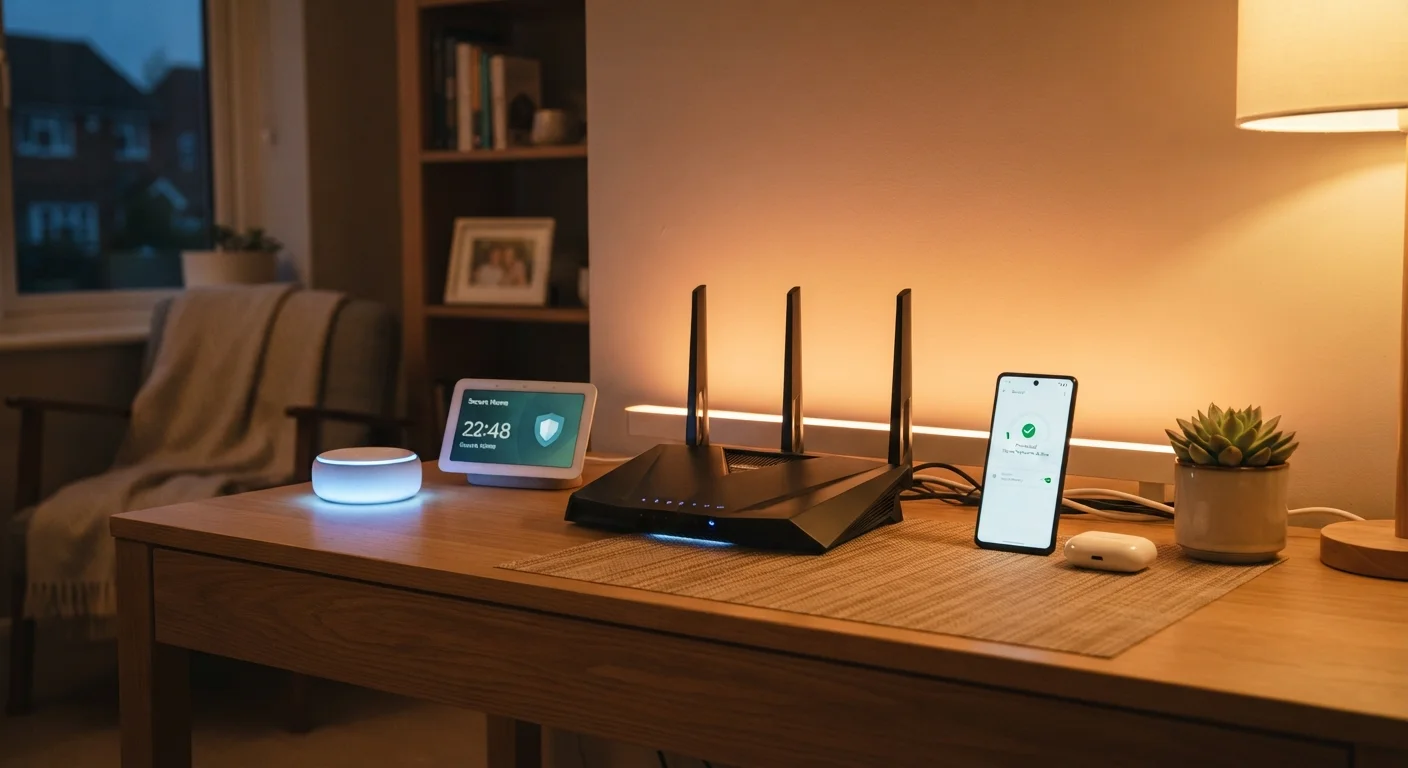
When guests connect to your main network, they share the same space as your most sensitive devices. Smart home gadgets - thermostats, cameras, voice assistants - often have weaker security than laptops or phones, making them easier targets. Isolating them on a guest network limits the damage if any single device is compromised.
Keep your router's firmware updated.
Router manufacturers regularly release firmware updates to patch security vulnerabilities. Unpatched routers remain exposed to known flaws that attackers can exploit - often automatically, without any action required from the attacker beyond scanning for vulnerable devices.
Disable remote management unless you actively use it.
Remote management allows your router to be administered from outside your home network - a feature most households never need. When left enabled, it creates an exposure point that can be exploited without physical access to your home.
Use WPA3 or WPA2 encryption - and disable older protocols.
Wireless encryption standards protect the data traveling across your network. Older protocols like WEP and WPA are now considered insecure and can be broken relatively easily. WPA2 is widely supported and reliable; WPA3 is the current standard and offers stronger protection where available.
Core Practices Worth Building
The following habits address the most common and consequential vulnerabilities in home networks. None require advanced tools - just a few minutes and your router's settings page.
Keeping Your Network Healthy Over Time
Security isn't a one-time setup - it's an ongoing posture. Every few months, log into your router and review which devices are connected. An unfamiliar device name can be a sign of unauthorized access or simply a forgotten gadget that's no longer needed. Either way, knowing what's on your network is the first step to controlling it.
Firmware updates - software patches released by your router's manufacturer - are easy to overlook because they don't come with notifications the way phone apps do. Checking for updates quarterly is a reasonable minimum. Many newer routers can be set to update automatically, which removes the need to remember entirely.
“Security is always excessive until it's not enough.”
— Robbie Sinclair, Head of Security, Country Energy (widely cited in information security discussions)
Finally, treat your digital security habits the same way you'd treat any other household routine. For guidance on building a broader security practice that's sustainable long-term, see building a personal digital security routine. And if weak passwords are part of the picture, password habits that quietly undermine your security is worth a read alongside this one.