
Start With a Baseline: What Speed Are You Actually Getting?
Before blaming your router, your ISP, or your neighbor's microwave, you need a number to work with. Open a browser on a laptop or desktop and run a free speed test - search for "internet speed test" and use any of the well-known tools that appear. Note your download speed, upload speed, and ping (the response delay in milliseconds).
Now check the plan you're paying for. That figure is usually on your ISP bill or in your online account. If your measured speed is close to your plan's advertised speed, the problem is almost certainly inside your home - your devices, your router, or your Wi-Fi signal. If the speed is dramatically lower, your ISP may be part of the equation, but don't call them yet. Work through the in-home steps first.
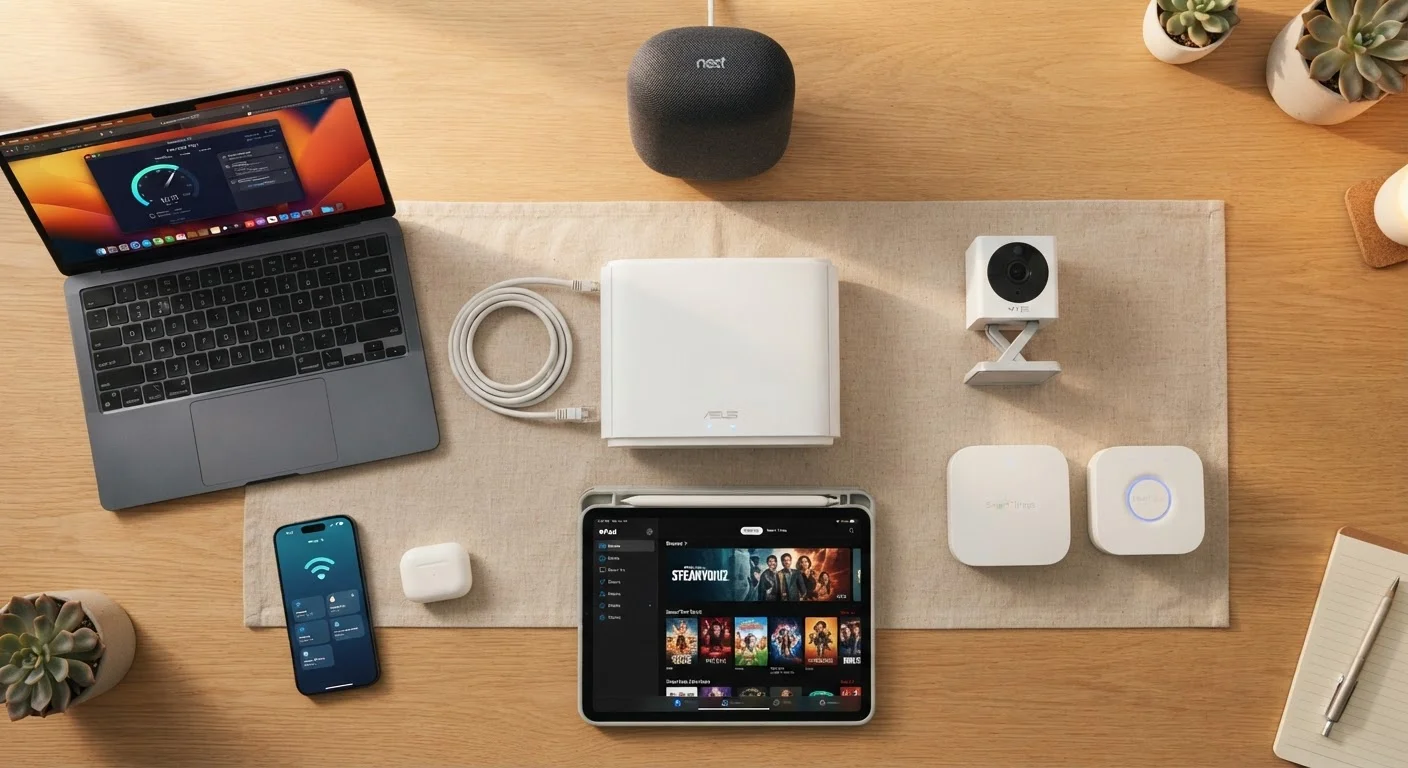
For the most accurate reading, plug a laptop directly into your modem or router with an Ethernet cable before running this test. A wired connection removes Wi-Fi as a variable and gives you the clearest picture of what's actually arriving at your home. See how your home network works to understand why this distinction matters.
Run Your Speed Test at Different Times
Internet speeds naturally fluctuate throughout the day. If your test looks fine at 10 a.m. but sluggish at 8 p.m., congestion - either in your home or on your ISP's local network - is likely the cause. Testing at multiple times gives you a clearer picture than a single snapshot.
The Systematic Fix: Work From the Source Outward
Think of your internet connection like water flowing through pipes: it enters your home at the modem, travels through your router, spreads across Wi-Fi, and finally reaches your devices. Slowdowns can happen at any point. The steps below move logically from the source toward the end devices, so you stop as soon as you find the problem.
Restart Your Modem and Router
Unplug both your modem and your router from power. Wait a full 60 seconds - not just a few - then plug the modem in first, wait 30 seconds for it to fully connect, and then plug the router back in. This clears temporary memory errors and forces the devices to re-establish a fresh connection with your ISP.
Check How Many Devices Are Connected
Log into your router's admin page (the address is usually printed on the router's label, often 192.168.1.1 or 192.168.0.1) and look for a connected devices list. Count everything: phones, tablets, laptops, smart TVs, game consoles, smart speakers, thermostats, and security cameras. Each active device shares your available bandwidth. A household with 15 connected devices on a basic plan will feel slow even when nothing seems obviously wrong.
Check for Bandwidth-Heavy Background Activity
On your main computer, open the task manager (Windows: Ctrl + Shift + Esc; Mac: Activity Monitor in Applications > Utilities) and click the network column to sort by usage. Look for apps consuming significant bandwidth - cloud backup services, video streaming, large downloads, or software updates. Pause or close these, then re-run your speed test.
Evaluate Your Router's Physical Placement
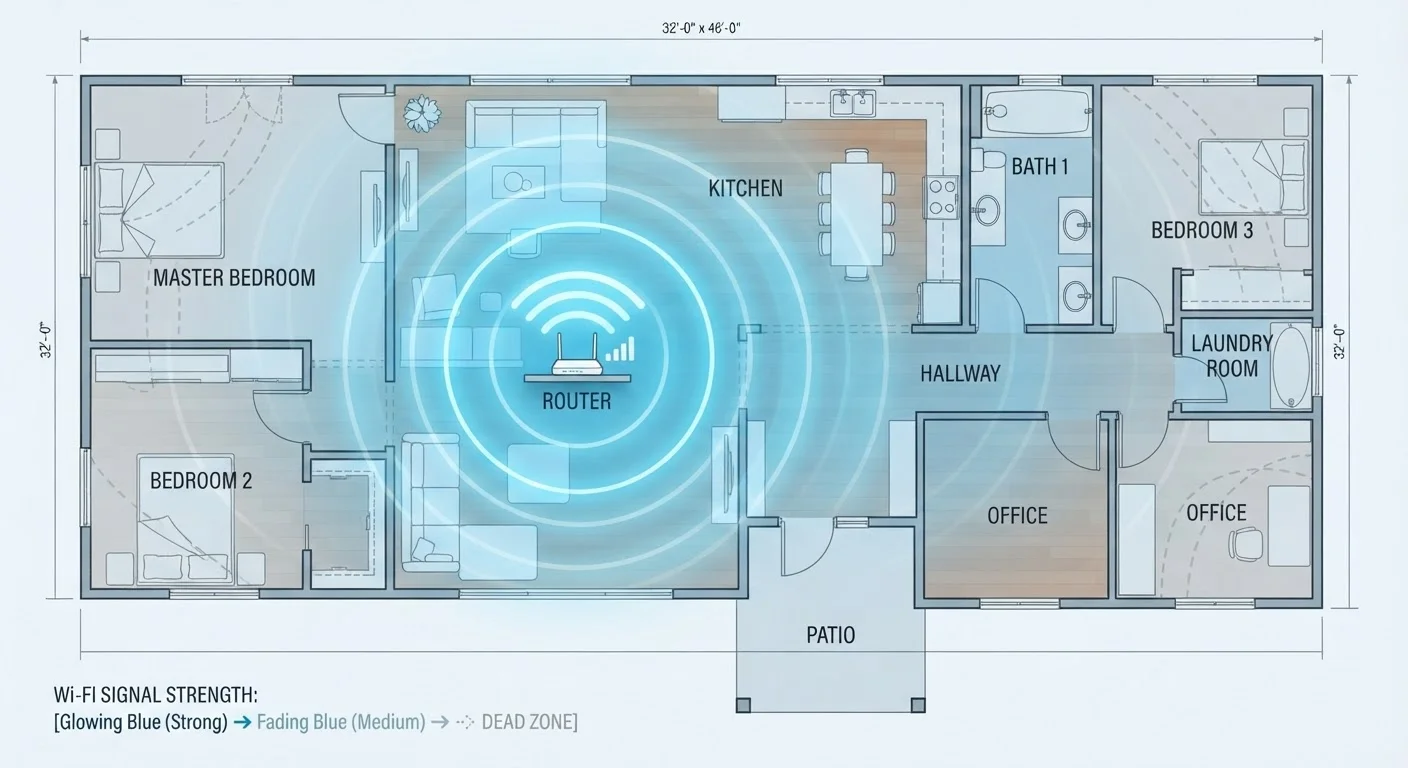
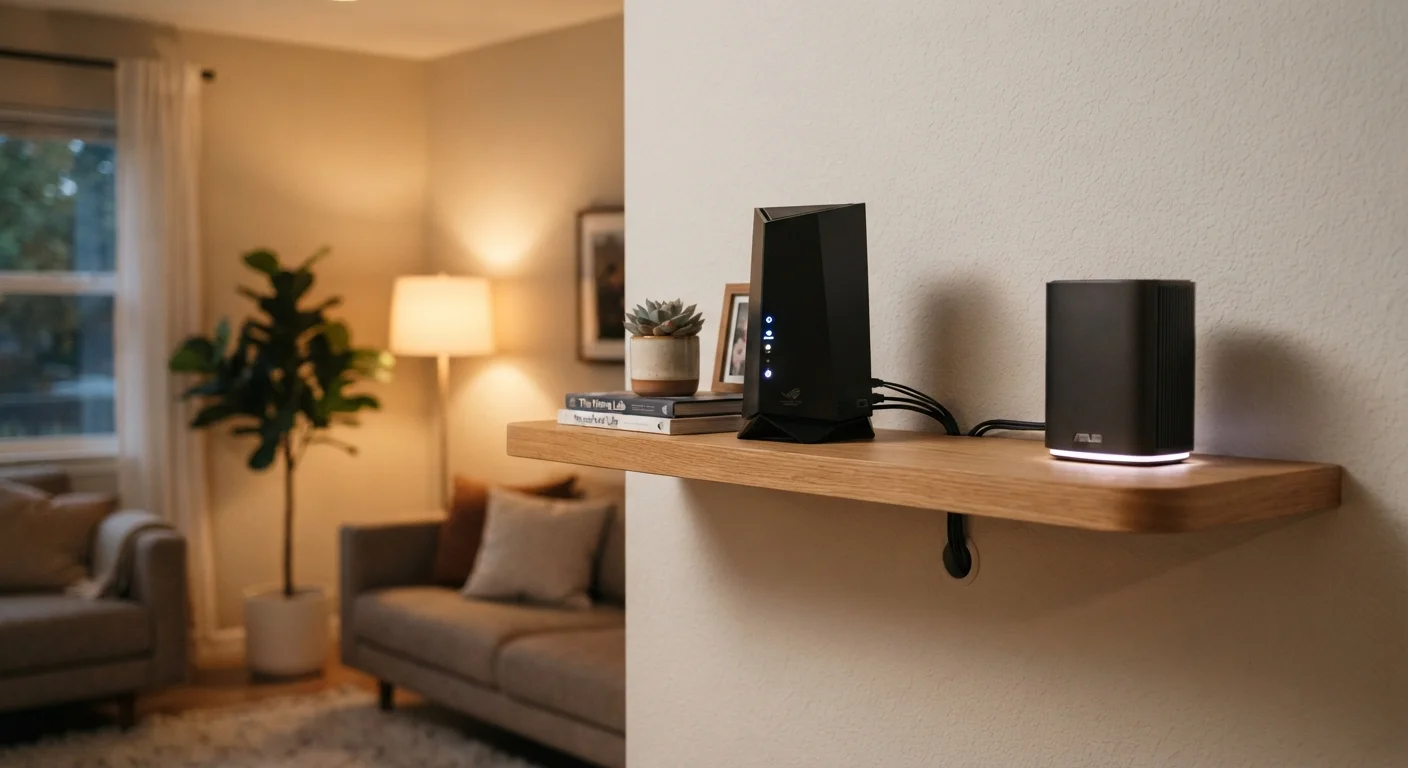
Your router should be in a central, open location - ideally elevated, away from thick walls, metal appliances, and other electronics. A router tucked in a closet, placed on the floor, or buried behind a TV stand can lose a significant portion of its effective range. Move it to a more open spot and test again from the same location you used for your baseline speed test.
Run the Speed Test Again - Wired vs. Wi-Fi
After the above steps, run your speed test twice: once with the Ethernet cable still plugged in, and once over Wi-Fi from the same room as your router. Compare both results to your baseline. If wired speed is now close to your plan's advertised rate, your connection is healthy and any remaining slowness is a Wi-Fi coverage or device issue. If the wired speed is still low, the problem is upstream - either at the modem level or with your ISP.
If you've worked through all the steps and speeds are still low only on Wi-Fi - but fine on a wired connection - your issue is likely signal coverage. Certain rooms in your home may be too far from the router, or physical obstructions are weakening the signal. That's a placement or hardware problem worth addressing separately. Our guide on eliminating Wi-Fi dead zones walks through those specific fixes in detail.
Don't Skip the Wired Test
Diagnosing slow internet over Wi-Fi alone can lead you to wrong conclusions. Wi-Fi interference, signal distance, and router band selection all affect wireless speed independently of your actual internet connection. Always confirm your baseline with a direct Ethernet connection before concluding your ISP is at fault.
When the Problem Really Is Your ISP
If a wired speed test consistently shows speeds well below your plan - say, you're paying for 300 Mbps and consistently measuring under 50 Mbps - then it's time to contact your provider. Before you call, run the test at different times of day. Significant slowdowns only during evening hours often point to network congestion in your area, which is an ISP-side issue.
Document your results: note the date, time, and measured speeds for three or four separate tests. This gives your ISP's support team concrete data to work with rather than a vague complaint. Ask specifically whether there are known outages, congestion issues, or signal problems on your line. If you rent your modem from the ISP, also ask whether the equipment is due for an upgrade - older modems can become bottlenecks over time.
Upgrading to a better router setup - such as a mesh system - may also be worth considering if your home is large or has many floors. Understanding when mesh Wi-Fi makes sense versus a traditional router can help you decide whether new hardware is the right next step.