Why Every Device Is a Data Risk
Most people think of data security as a smartphone problem. In reality, every device connected to the internet - your laptop, smart TV, gaming console, and home router - collects, stores, or transmits information about you. A breach on any one of them can expose login credentials, payment details, browsing history, or your physical location.
The number of connected devices in the average American home has grown sharply over the past decade. More devices means a larger attack surface: more places where a gap in security can be exploited. Understanding what each device holds - and what settings reduce its risk - is the starting point for meaningful protection. For a broader foundation, see our introduction to online privacy.
17+
Average connected devices per U.S. household
According to Deloitte's Digital Media Trends research, the average American household connects more than 17 devices to the internet.
80%
Data breaches involving stolen credentials
The Verizon Data Breach Investigations Report has consistently found that the majority of breaches involve compromised usernames and passwords.
Securing Your Smartphone
Your phone is the most personal device you own. It often holds your email, banking apps, health data, photos, and location history simultaneously. Several settings make a significant difference:
- Screen lock: Use a strong PIN (six digits or more), fingerprint, or face unlock. Avoid swipe-only patterns, which are easy to replicate.
- App permissions: Review which apps can access your location, microphone, camera, and contacts. Revoke access that isn't essential to the app's function.
- Automatic updates: Enable OS and app updates. Security patches close known vulnerabilities - delays leave you exposed.
- Encrypted backups: Back up your phone to an encrypted destination, whether cloud-based or local.
Be equally cautious about the networks your phone joins automatically. Our guide on what's actually at risk on public Wi-Fi explains which behaviors on open networks create real exposure.
After installing any new app, immediately go to your phone's settings and review the permissions it requested - don't assume defaults are sensible. Most apps request far more access than they need to function.
Apps are granted permissions at install time and rarely prompt users to revisit them, meaning unnecessary data access accumulates silently over months or years.
Set a calendar reminder every three months to log into your router's admin panel, check for firmware updates, and verify no unfamiliar devices are connected to your network.
Router firmware vulnerabilities are regularly discovered, but most home routers don't update automatically - and unknown devices on your network can indicate unauthorized access.
Locking Down Your Laptop or Desktop
Computers store more data in more places than most users realize - browser saved passwords, downloaded documents, cached emails, and auto-fill form data. Key protections include:
- Full-disk encryption: Built into modern operating systems (FileVault on macOS, BitLocker on Windows), this renders your drive unreadable if the device is lost or stolen.
- Account passwords and screen lock: Every user account should require a password, and the screen should lock automatically after a short idle period.
- Browser hygiene: Periodically clear saved passwords from your browser and instead use a dedicated password manager. Review which browser extensions have access to your data.
- Firewall: Keep your OS firewall enabled. It filters unsolicited incoming connections.
Two-factor authentication (2FA) on your accounts adds a critical second layer even if a password is compromised. Learn more in our explainer on why two-factor authentication matters.
Never Reuse Passwords Across Accounts
Reusing the same password across multiple accounts is one of the highest-risk habits in digital security. When one service is breached - even a minor one - attackers use those credentials to try every other major platform automatically. This technique, called credential stuffing, is extremely common and highly effective against reused passwords. A password manager makes using unique passwords for every account practical without requiring you to memorize them.
Smart TVs and Streaming Devices
Smart TVs collect more data than most owners expect: viewing habits, app usage, voice commands (if a microphone is present), and sometimes camera input. Streaming sticks and boxes connected to your TV carry similar risks. Steps worth taking:
- Disable ACR (Automatic Content Recognition): This feature tracks what you watch and shares it with advertisers. It's usually buried in privacy or data settings and is on by default.
- Turn off the microphone when not in use: If your remote or TV has voice activation, disable it in settings or use the physical mute switch if available.
- Use strong, unique passwords for streaming accounts: Shared account access can expose your payment details. Our guide on sharing streaming accounts safely covers how to set up profiles and PIN locks properly.
- Keep firmware updated: Smart TV manufacturers release security patches; check for updates manually if auto-update isn't available.
Smart TVs Often Share Viewing Data by Default
Automatic Content Recognition (ACR) is enabled by default on most smart TVs sold in the U.S. It captures information about everything you watch - including content from external HDMI devices - and shares it with the manufacturer and advertising partners. This setting is typically found under "Privacy," "Data," or "Smart TV Experience" in your TV's settings menu. Disabling it does not affect your TV's core functionality.
Your Router: The Gateway to Everything
Your router is the single device through which all internet traffic on your home network passes - and it's frequently the least secured. Factory default credentials (often "admin/admin" or a printed password on the device label) are widely known and exploited. Essential steps:
- Change the default admin password immediately and use a strong, unique one.
- Rename your network (SSID): Avoid names that identify your household or router model.
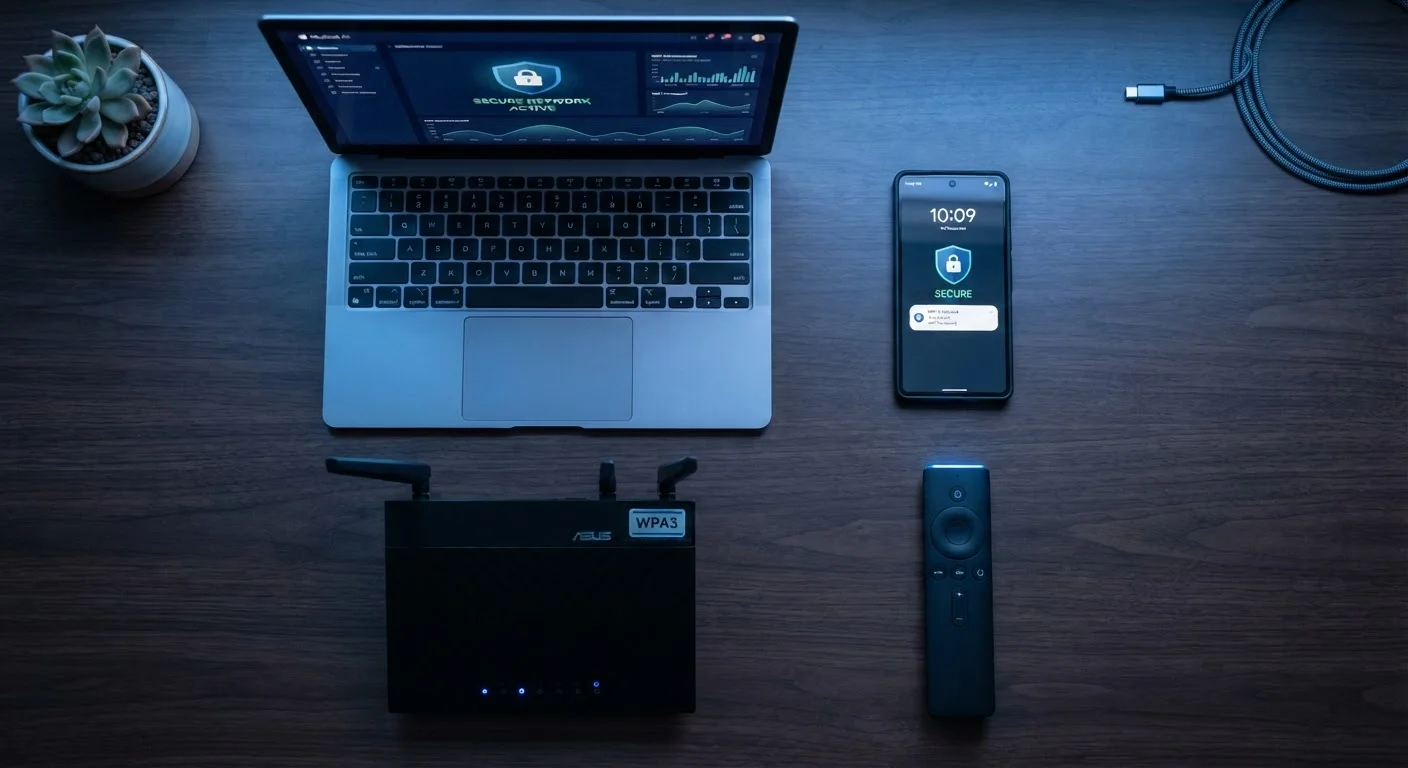
- Use WPA3 or WPA2 encryption: Check your router's wireless security settings. WEP is outdated and insecure.
- Create a guest network: Isolate smart home devices and visitor traffic from your primary devices on a separate network segment.
- Update router firmware: Log into your router's admin panel periodically to check for firmware updates.
For a deeper look at how everything on your home network connects - and how to manage it - see everything that lives on your home network. Additional practical steps are covered in our home network security habits guide.
Habits That Protect Every Device at Once
Device-specific settings matter, but the habits you maintain across all devices are what provide consistent protection. A few that apply universally:
- Use a password manager: Unique, complex passwords for every account - without memorizing them - are only practical with a dedicated manager.
- Enable automatic updates everywhere: Phones, computers, routers, and smart devices all receive security patches that address newly discovered vulnerabilities.
- Audit app and account permissions regularly: Services and apps accumulate data access over time. A quarterly review of what has access to what is a meaningful check.
- Be intentional about convenience features: Location sharing, voice assistants, and auto-fill all trade some privacy for ease. Our article on the trade-offs of convenience vs. privacy offers a balanced perspective on each.
Building these into a repeatable routine is the most reliable approach. Our guide on building a digital security routine that actually sticks provides a practical framework for doing exactly that. You can also use our digital footprint audit to see what data you've already shared and where to start reducing it.
No Setup Is Permanently Secure
Security is an ongoing process, not a one-time configuration. New vulnerabilities are discovered regularly in operating systems, apps, and devices - which is why software updates and periodic reviews of your settings matter more than any single action you take today. Treat your security setup as something to revisit every few months rather than a problem you solve once.