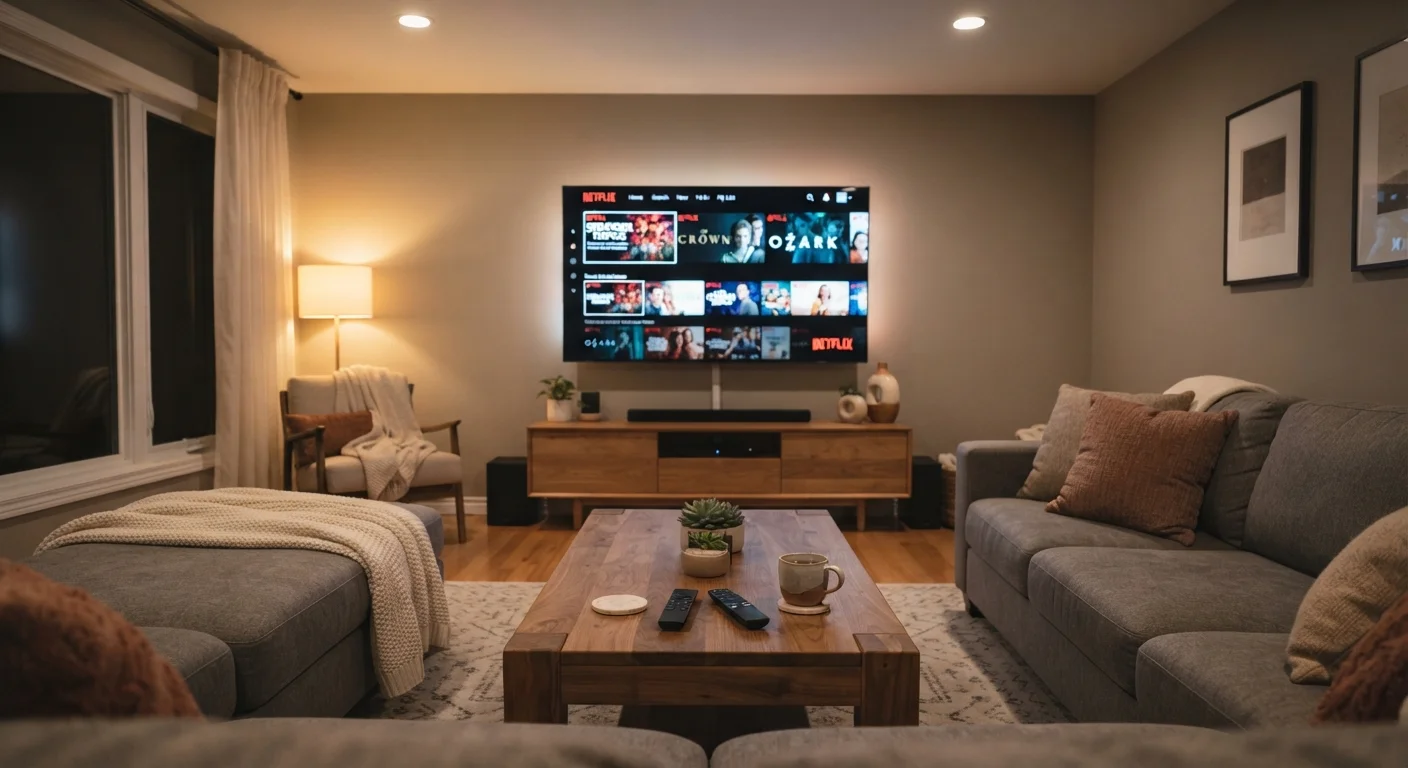

Why Profiles Are the Key to Peaceful Sharing
Sharing a single streaming subscription across a household can feel chaotic - kids' shows bleeding into your recommendations, a partner's documentary binge pushing aside your unfinished series. The solution built into virtually every major streaming platform is the user profile: a separate viewing space within one account, each with its own watch history, preferences, and recommendations.
Profiles don't add cost, and they're straightforward to set up. Think of them like individual user accounts on a shared family computer. Each person signs into their own profile, and the service keeps their experience completely distinct from everyone else's. Before you start, make sure you have the following in hand.
What you will need
If you're still deciding whether streaming is the right fit for your household in the first place, our guide on what changes when you cut the cord covers what to expect.
Step-by-Step: Setting Up Your Family's Streaming Account
Follow the steps below to configure your account for the whole household. While menu names differ slightly across platforms, the underlying structure is nearly identical on most major services.
Log in and open Account or Profile Settings
Open your streaming app on any device and sign in with the account owner's credentials. Navigate to the Account or Profile section - usually found by selecting your profile icon in the top corner of the home screen. This is where all profile management lives.
Create a separate profile for each family member
Select Add Profile and enter a name for the first family member. Most platforms allow between 4 and 6 profiles per account. Assign each person a distinct avatar or profile icon so it's easy to identify on the selection screen. Repeat this for every adult and child in the household.
Set content maturity ratings for children's profiles
When creating or editing a profile for a child, look for a Kids Profile toggle or a Content Rating setting. Enabling a Kids Profile typically restricts the interface to age-appropriate titles and hides the main content library entirely. If your platform uses maturity ratings instead, select the highest rating appropriate for that child's age group (for example, G or TV-Y7 for younger children).
Add a PIN lock to adult profiles
To stop children from switching into adult profiles, enable a Profile Lock or Profile PIN. In your account or parental controls settings, set a 4-digit PIN for each adult profile you want to protect. Anyone selecting that profile will be prompted to enter the PIN before accessing it. Choose a PIN that is memorable for adults in the household but not easily guessed by children.
Enable two-factor authentication on the main account
Separate from profile PINs, secure the account itself with two-factor authentication (2FA) - a setting that requires a second verification step (usually a code sent to your phone or email) whenever someone logs in on a new device. Find this under Account Security or Sign-In Settings. This protects the entire household's account from unauthorized access.
Walk each family member through their own profile
Take a few minutes to show each person how to select their profile from the home screen, and confirm that children's profiles show only appropriate content. This brief onboarding step prevents confusion and reduces the chance someone accidentally uses the wrong profile out of habit.
Keep Your Main Account Password Private
Share profiles with family members, not the account login itself. If your main password is widely known, anyone who leaves the household - a college student, a former roommate - retains access until you change it. Treating the account credentials as private also gives you a single point of control over billing and security settings.
Once everyone has a profile, it's worth thinking about broader account security. Our article on protecting personal data across all your devices explains the security settings that matter most on smart TVs and streaming devices specifically.
Keeping Things Secure and Conflict-Free
Setting up profiles is only half the job. A few ongoing habits will keep your household setup running smoothly and securely.
Profile Locks Don't Replace Supervision
PIN-protected profiles and Kids Profiles are helpful guardrails, but they are not foolproof parental controls. A determined child can observe a PIN being entered, and content filtering is only as current as the platform's own ratings system. These tools work best as one layer in a broader approach to managing what children watch, not as a substitute for parental oversight.
Review who has access periodically. If a family member moves out or you change your account password, update your profile list accordingly. Most platforms allow you to sign out all devices remotely from the account settings menu - a useful option if you've ever logged in on a device you no longer own.
Streaming subscriptions are a real household expense, and they're worth tracking alongside other recurring costs. For tips on how families can manage shared expenses more deliberately, see our guide on budgeting as a household.
For broader home network safety - including how to lock down the Wi-Fi your streaming devices connect through - our home network security habits is a practical next step.
Sharing Passwords Outside Your Household
Most streaming services' terms of service restrict account sharing to people living in the same household. Sharing login credentials with friends or family members at other addresses may violate those terms and could result in account suspension or required plan changes. Review your platform's current policy so your household setup stays within the rules.