Why App Permissions Are Worth a Second Look
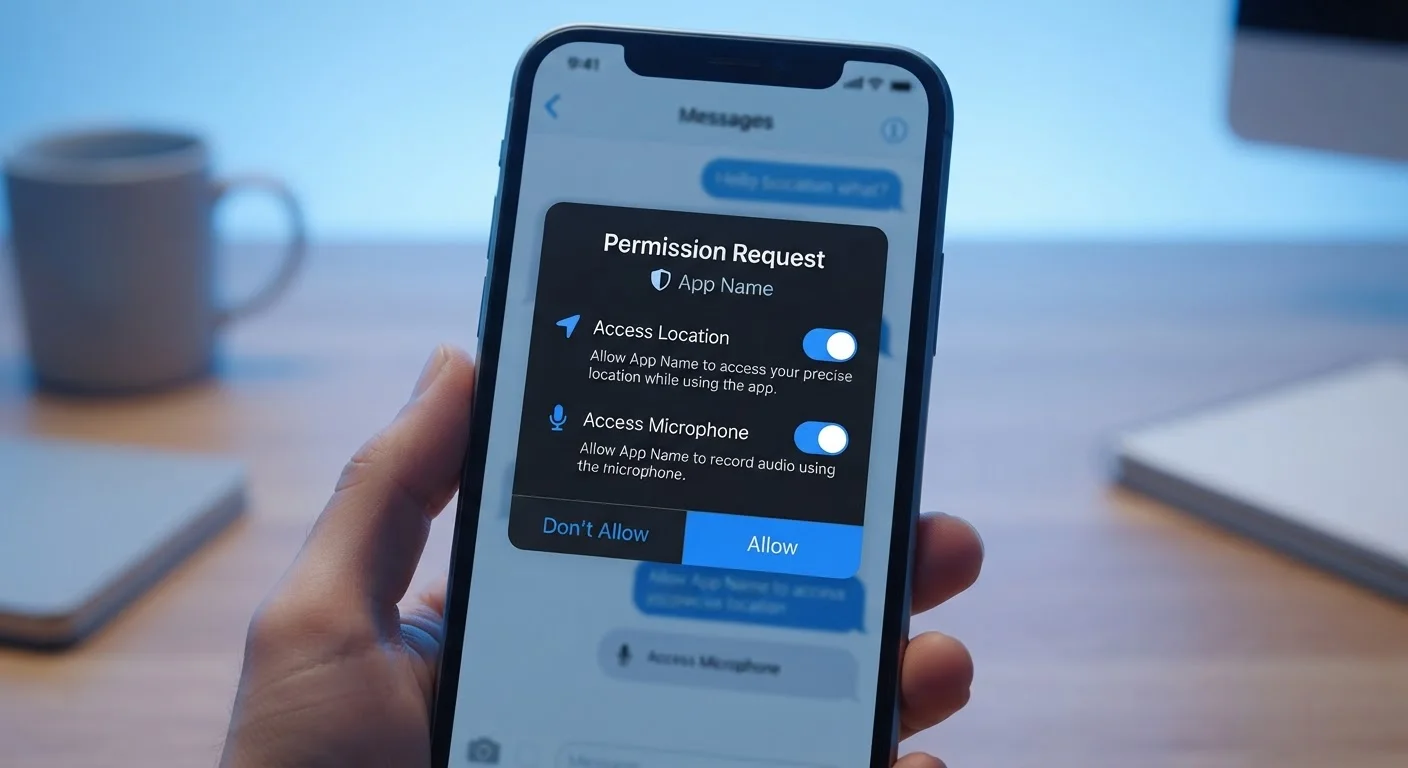
Most people tap 'Allow' instinctively. The prompt appears, the app is waiting, and granting access feels like the natural next step. But each tap is a binding decision: you're giving a piece of software - and the company behind it - real-time access to your device's hardware or personal data.
App stores have improved disclosure requirements in recent years, but the actual permissions dialog on your screen is still easy to rush past. Understanding what's behind each request puts the decision back in your hands. For context on similar read-before-you-agree situations, the same deliberate approach applies to agreements outside tech - much like confirming key policy terms before signing an insurance document.
Your smartphone is also a data hub - connected to networks that carry their own exposure risks. For related guidance, see what's actually at risk when you connect to public Wi-Fi.
iPhone Settings > Privacy & Security
Central hub for reviewing and revoking all app permissions on iOS devices.
Android Settings > Apps > Permissions
Lists every permission category and which apps have been granted access on Android devices.
App Store or Google Play listing
View the 'Data Safety' or 'Privacy' section before installing an app to understand what it collects.
How to Review and Control Your App Permissions
What you will need
The steps below walk you through understanding, auditing, and adjusting app permissions on either iOS or Android. You don't need any special software - everything is built into your device's settings.
Understand what each permission type actually accesses
Before you can make good decisions, know what you're granting. Here's what the most common permissions mean in practice:
- Location: Your physical coordinates, often accurate to within a few feet via GPS.
- Microphone: The ability to capture audio from your surroundings at any time the app is active.
- Camera: Live access to your front or rear camera feed.
- Contacts: Your full address book, including names, phone numbers, and emails of people who never agreed to share their data.
- Photos/Media: Access to your photo library, which may contain images with embedded location metadata.
- Bluetooth & Nearby Devices: Can be used to infer location and detect nearby hardware, even without GPS.
Ask whether the permission matches the app's purpose
A flashlight app has no legitimate reason to access your contacts. A recipe app doesn't need your microphone. Before tapping 'Allow,' run a quick logic check: does this permission directly enable a feature I'm about to use?
If the connection isn't obvious, that's worth pausing on. Some apps collect data beyond what they need for legitimate business purposes - advertising targeting, analytics resale, or user profiling. This doesn't make them illegal, but it's a trade-off worth understanding. For a broader look at these exchanges, see the trade-offs of convenience vs. privacy in everyday tech.
Open your device's permission manager
On iPhone: Go to Settings → Privacy & Security. Each category (Location Services, Microphone, Camera, etc.) shows every app that has requested that permission and what level of access it currently holds.
On Android: Go to Settings → Apps → tap an app → Permissions. Alternatively, go to Settings → Privacy → Permission Manager to browse by permission type across all apps.
Revoke permissions that don't make sense
Work through each sensitive permission category - Location, Microphone, Camera, Contacts, and Photos - and ask whether each listed app genuinely needs it. To revoke on iOS, tap the app name within the permission category and change the setting. On Android, tap the permission within the app's detail page and select 'Don't Allow.'
Pay particular attention to apps you haven't opened in months. Dormant apps can retain active permissions indefinitely.
Set a recurring reminder to audit permissions
Permissions accumulate silently over time. App updates can also quietly request new permissions you weren't asked about initially. Set a calendar reminder every three to six months to repeat steps 3 and 4. This single habit provides ongoing protection with minimal effort.
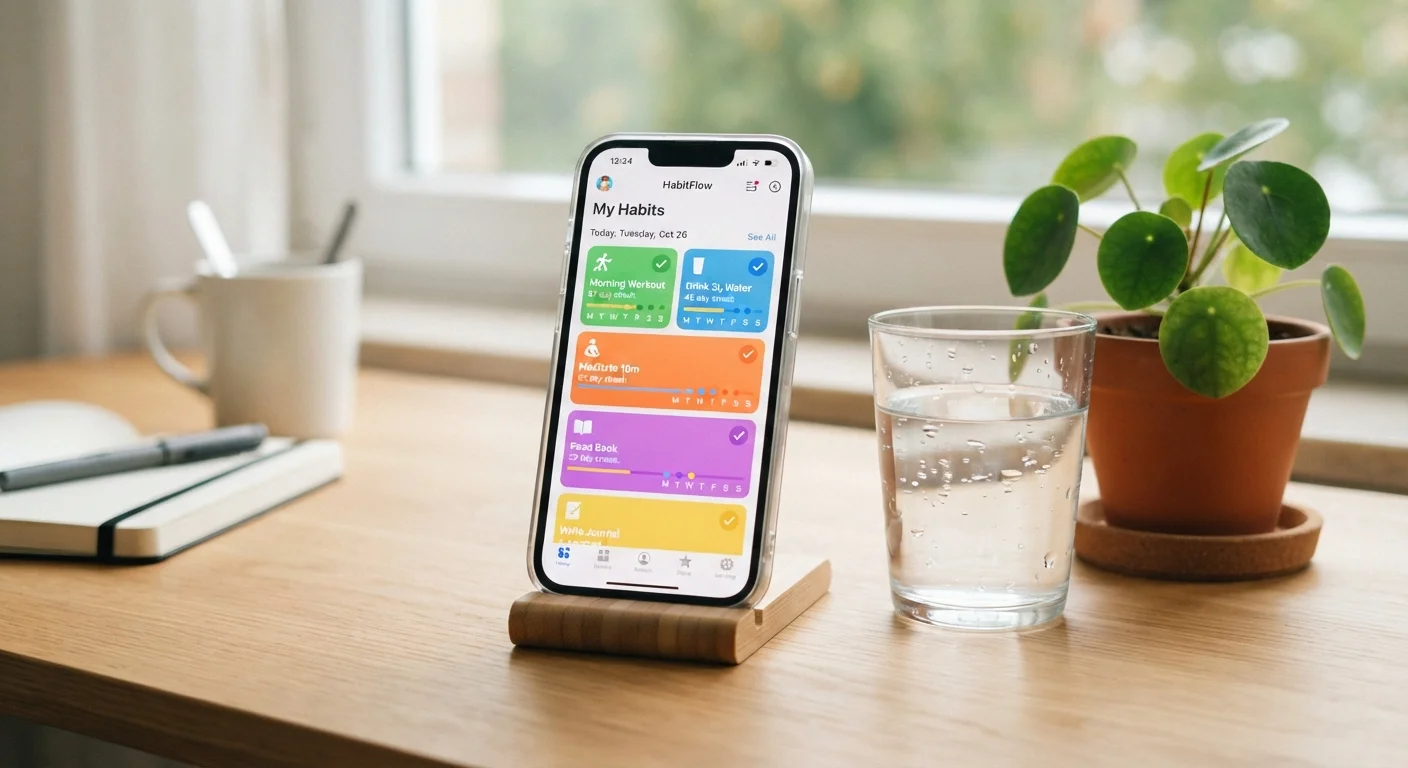
If you use health or habit-tracking apps, this audit is especially worthwhile - those apps often request broad data access. Understand the full picture of what health-tracking apps collect before granting them persistent access to your activity or location data.
Permissions Persist Until You Revoke Them
Granting a permission isn't a one-time event - it stays active in the background until you manually turn it off. An app you downloaded a year ago may still have access to your microphone or location today. Review your permissions regularly, not just at install time.
"Always Allow" Location Is a High-Risk Setting
Selecting 'Always Allow' for location access lets an app track your movements continuously, even when you're not using it. Reserve this setting only for apps with a clear, functional reason - like a navigation app you use daily. Most apps only need location access 'While Using the App' at most.
When in Doubt, Deny First
You can always grant a permission later if the app asks again or stops working correctly. Starting with 'Deny' and upgrading only when necessary is a sound default posture. The vast majority of apps will still function with reduced permissions.